Work Smarter, Not Harder: Streamlining Slide Decks with Gemini AI
by Susan Gaer, OTAN Subject Matter Expert
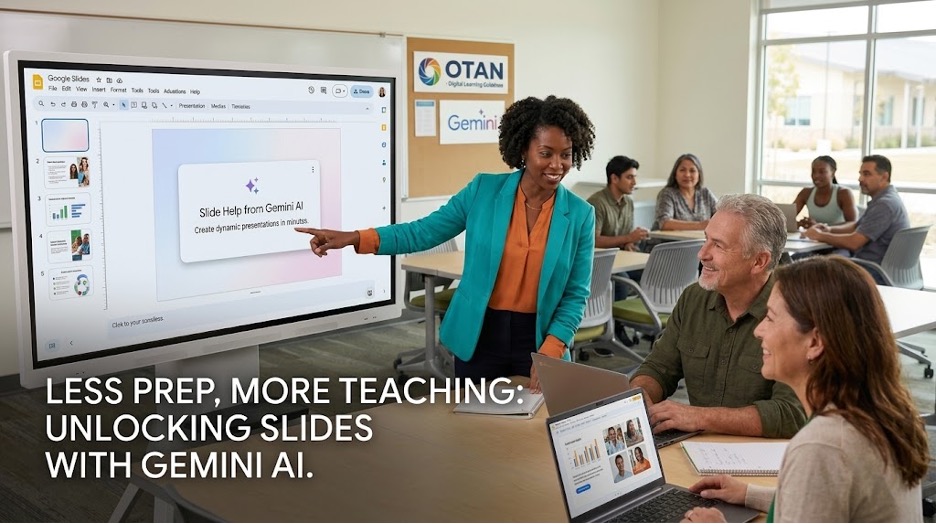
You know the scenario. You are getting ready to teach your class, and you want to create a slide presentation. You want a nice background, photos that are local to augment your slide and you want an engaging slide presentation to cement your objectives to make it easy for your students to learn. It seems daunting to do all this, and you wonder if it is worth your time. Worry no more. With Gemini’s integration, it is now easy to create beautiful slides with gorgeous backgrounds. So let’s start off with some tips and tricks for making good slides.
Tips for Effective Google Slides
Before building your deck, keep these best practices in mind:
- Keep it simple: Limit each slide to one core idea paired with a clear headline.
- Prioritize strong visuals: Choose a single image that reinforces your point.
- Watch word count: Aim for no more than 15 words per slide.
- Cap bullet points: Limit yourself to 4 bullets per slide maximum.
Creating Slides with Gemini
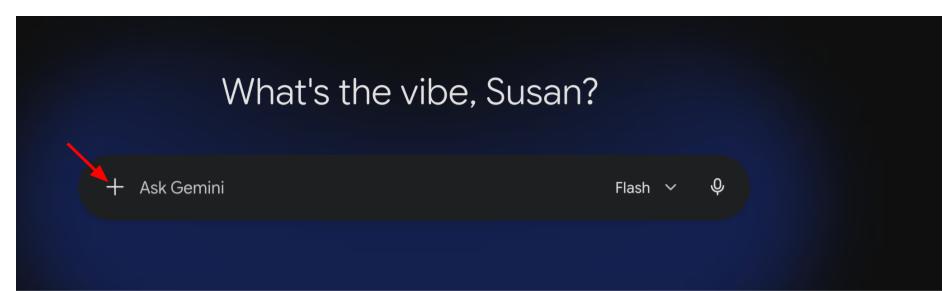
- Gemini makes it easy to create slides. First open Gemini. Make sure you are signed into your Google account (you will know you are logged in if you see your name at the top). Once you are signed in you will see a screen like this:
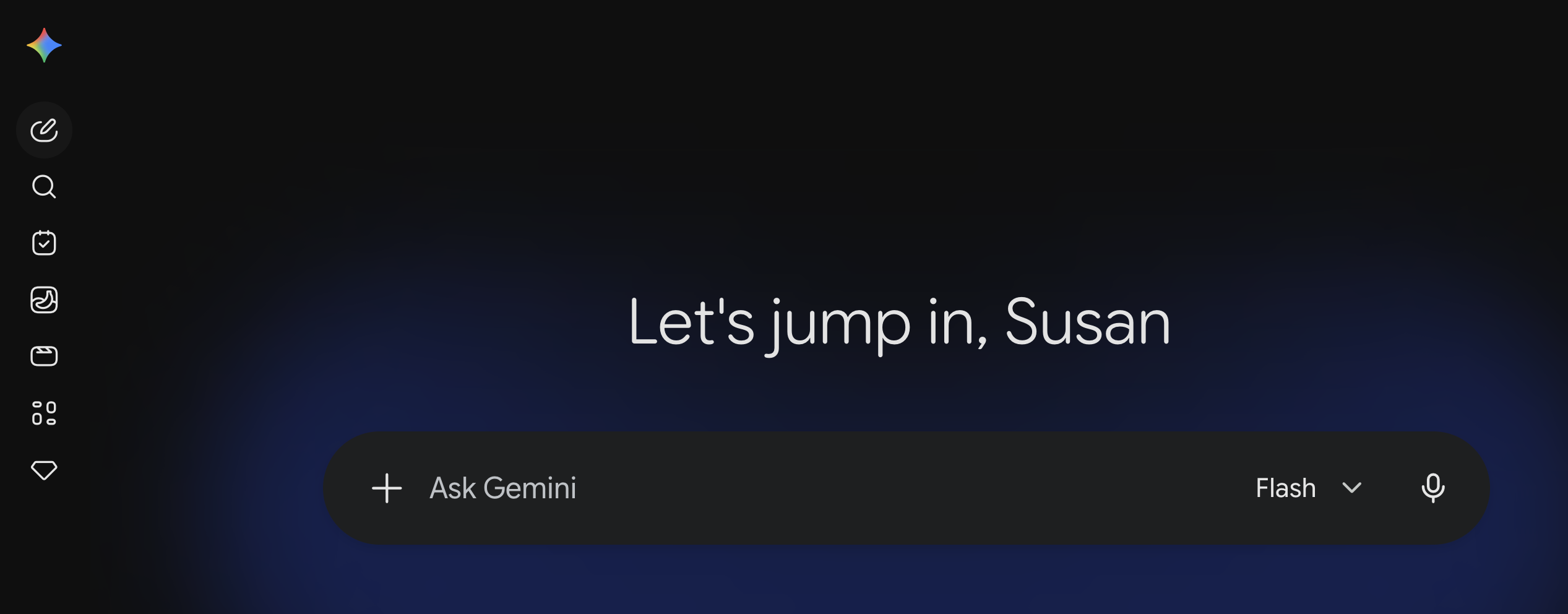
- Click on the plus sign.
- Scroll until you see the word Canvas.
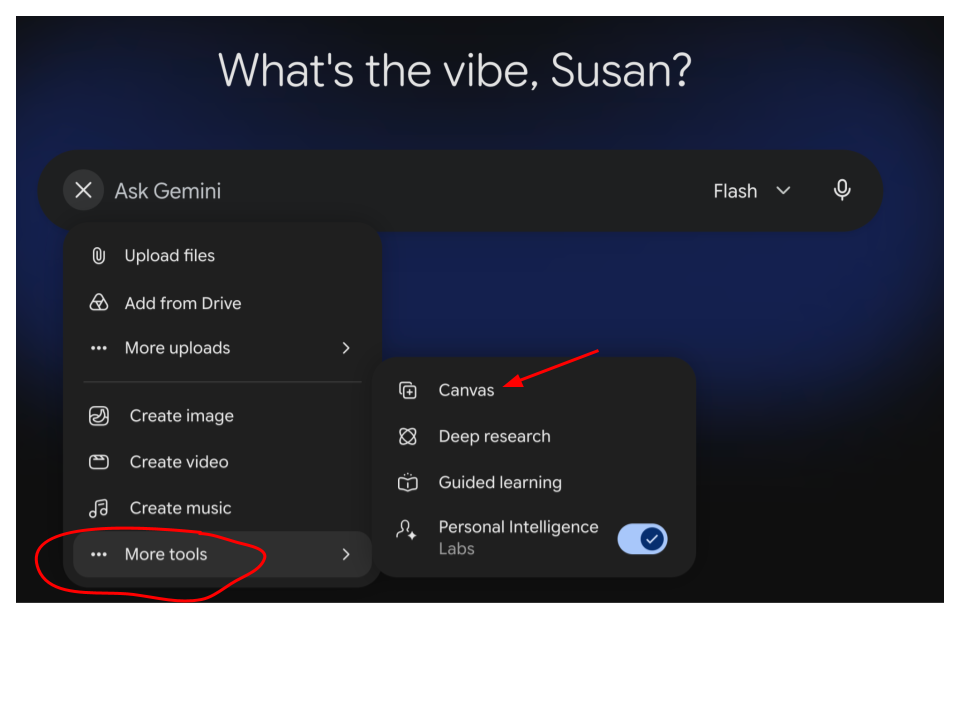
- On my computer it is under More Tools as in this image. Once you have opened Canvas, you might see it directly under the menu option.
📌 Note: Canvas is the word that Gemini uses for its interactive, side-by-side visual workspace within Gemini for building, writing, coding, and dynamic content creation. It is completely different from the Canvas LMS and CANVA design maker.
- Once you are in Gemini’s Canvas building space, you are ready to start building your slides with a well-written prompt. Use these questions to help you build a robust and specific prompt:
- How many slides do you want?
- What is the topic?
- Who is the audience?
- What visual style and theme do you want?
- How many words per slide? (no more than 15 words please)
- How do you want your images to look? (photos, clip art, comic, etc.)
- What type of structure? (Bullet points, charts, timeline, etc)
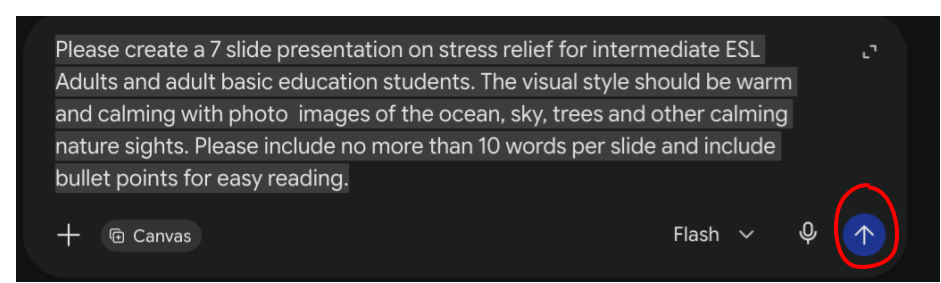
My prompt: Please create a 7-slide presentation on stress relief for intermediate ESL Adults and adult basic education students. The visual style should be warm and calming with photo images of the ocean, sky, trees and other calming nature sights. Please include no more than 10 words per slide and include bullet points for easy reading.
Here is what my prompt looks like after I typed it into Gemini Canvas. When I am ready, I click on the blue arrow to send it off to render my slides.
This is where the magic begins. Once I send it off to render, it will create two windows. One with my query on the left and another on the right with a sample of my slides.
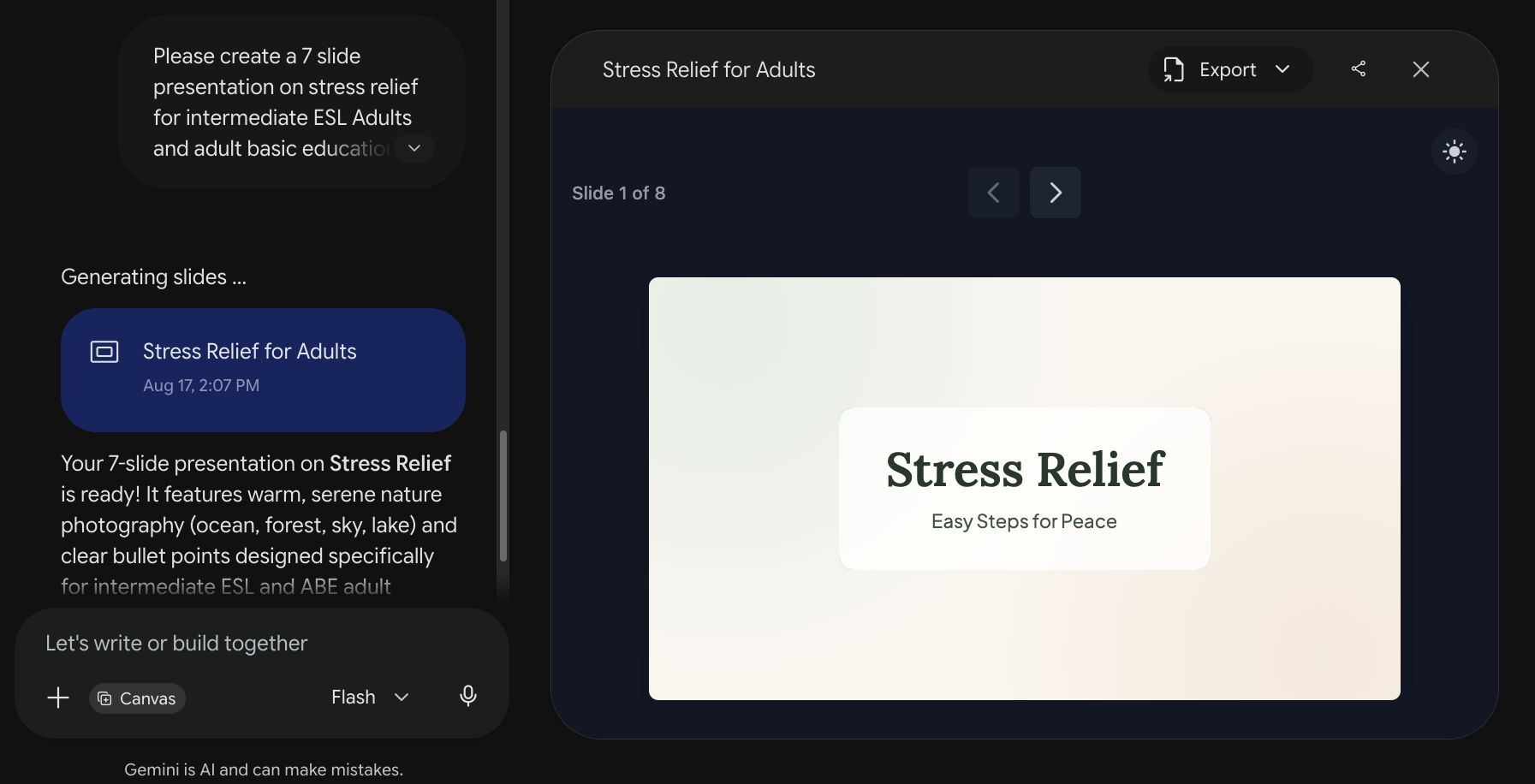
- You can make any adjustments you like by asking for changes on the left side of the window. After reviewing my slides, I decide I am going to make a few changes and here is my updated prompt below:
Add a picture on the title slide, on slide 2, please give me information to breathe in for 4, hold for 4 and exhale for 8. On slide 3 have an urban environment for resting under trees. Perhaps in an urban park. In slide 5, please show a person doing a particular stretch in the park.
📌 Note: With Gemini, when you make changes, you might get some weird formatting on your regeneration. So just ask Gemini to reformat. That will give you back a beautiful slide deck.
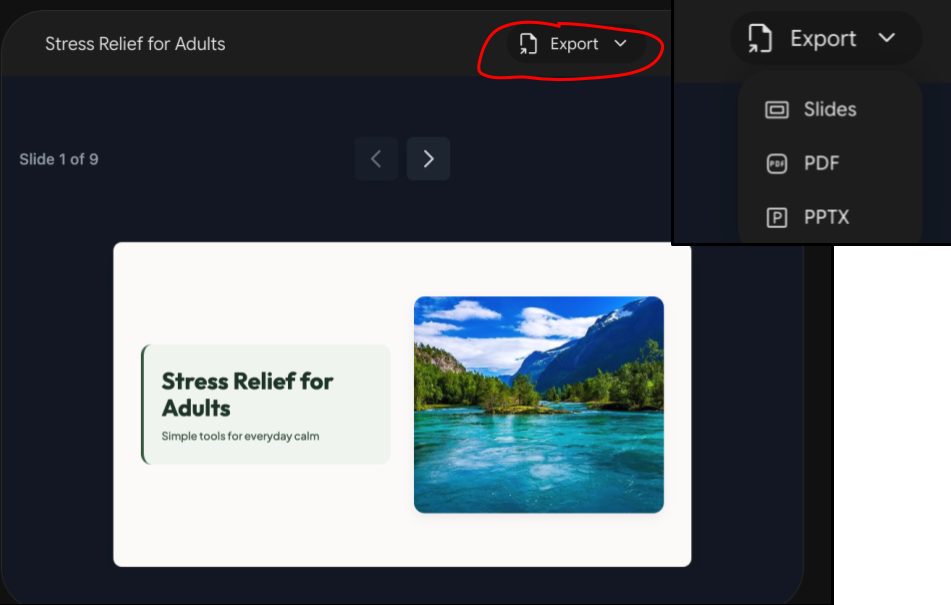
Here is my final slide deck which took me just 5 minutes to create. - Once you have the deck the way you like it, you are ready to export it to Google Slides. Click on the export button. From here you have the option to create Slides, PDF or PowerPoint.
Note: If you export it via Slides, you may then continue editing withing Google Slides.
Why use Gemini for slides?
Beyond saving you time as a teacher, bringing Gemini into the classroom completely transforms how students build projects.
Traditionally, when students created slide decks to show what they learned, the bulk of their time went toward searching for copyright-free images, tweaking layouts, and formatting text. What should have been a deep dive into subject matter often turned into hours of superficial design work.
With Gemini, the heavy lifting of formatting, image generation, and layout is taken care of. Instead of getting bogged down in mechanics, students focus on:
- Deep content mastery: Crafting clear, accurate ideas rather than copying and pasting text.
- Effective AI communication: Learning how to prompt, refine, and direct Gemini to match their vision.
- Digital literacy: Developing essential modern skills through critical thinking and iteration.
Alignment with OTAN’s Digital Guidance Framework
Using Gemini for slide design aligns directly with key standards in OTAN’s Digital Learning Guidance:
- Chapter 2 (Equity & Access): Empowers all learners—regardless of design experience—to build professional-quality presentations.
- Chapter 3 (Foundations of Digital Learning): Supports teachers and students in integrating modern digital tools into daily learning.
- Chapter 4 (Selecting Digital Tools): Demonstrates purposeful selection of educational technology.
- Chapter 8 (Generative AI): Applies generative AI directly to real-world learning and language tasks.
Classroom Ideas: Using Gemini with Students
Here are four ways students can use Gemini to focus on core content while building digital fluency:
- Professional Career Journey & Goals Deck
Students create a 5-slide presentation showcasing their background, skills, and career goals. By pasting a target job description into Gemini, students can prompt it to identify key skills to highlight, build the slide structure, and even draft a speaking script for practicing oral presentations.
- "How-To" Skill Share & Demonstration
Adult learners bring incredible life experience to the classroom, but sometimes struggle with the vocabulary to explain complex concepts in English or academic settings. Students can prompt Gemini to structure a 6-step instructional deck on a personal skill, like budgeting, fixing a flat tire, or cooking a favorite meal, allowing them to showcase their expertise with confidence.
- Cultural Heritage or Hometown Digital Guidebook
Students share their culture, city, or country of origin by designing a 4–6 slide visual travel guide. Gemini assists with summarizing historical facts, local customs, and dish origins in accessible language. It also offers vocabulary support and grammar checks, allowing multilingual students to rephrase native language ideas into clear, natural English.
- Interactive Quiz & Game Decks
Students build an interactive slide game to test peers on classroom content. Working individually or in groups, students input core concepts and prompt Gemini to generate creative question types, from choice-based adventure games to Jeopardy-style trivia.
Conclusion
Integrating AI into your teaching isn't about replacing your voice or your students' creativity. It's about shifting the focus from tedious formatting back to meaningful communication, deeper learning, and real-world connection.
By meeting the goals of OTAN’s Digital Learning Guidance framework, you’re not just saving time on lesson prep, you’re equipping your students with the critical AI literacy, language support, and digital skills they need for the future. Start small with your next lesson and watch how quickly both your teaching and your students' projects come alive!