A Teacher’s Guide to Building Apps with Gemini Canvas
by Susan Gaer
For adult educators in the ESL (English as a Second Language) space, the challenge has always been engagement. Adult learners juggle jobs, families and often trauma, making traditional learning difficult.
In addition, according to the Digital Learning Guidance (page 43), adult learners need their learning to be self-directed, moving through four distinct stages:
- Stage 1: Dependency, where the educator provides the structure.
- Stage 2: Interest, where the educator becomes a guide.
- State 3: Involvement, where the educator facilitates what learners want to do.
- Stage 4: Self-direction, where the educator becomes a consultant.
Getting students involved in developing their own learning tools helps direct them toward Stage 4.
Enter Gemini Canvas
Gemini Canvas is a specialized workspace within Gemini designed for "vibe coding." Coined by Andrej Karpathy (2025), this term describes building applications through natural language prompts rather than traditional programming.
Note: While the name is similar, Gemini Canvas is distinct from the Canvas LMS or the design platform Canva; it is a dedicated environment specifically for building and running custom apps.
For educators and students, this removes the barrier of complex syntax. Instead of mastering code, you can transform pedagogical concepts into functional, interactive web apps and games simply by describing them. This shift allows for the rapid creation of digital tools tailored to specific goals:
- Targeted Vocabulary: Interactive flashcard apps or word-association games.
- Grammar Mastery: Real-time syntax checkers or sentence builders.
- Life Skills: Simulated environments for practicing real-world scenarios.
These activities increase student engagement, which in turn helps students move more effectively into self-directed learning.
What is Gemini Canvas?
Canvas is a dedicated, interactive side-panel in Gemini that goes beyond simple chat responses. When you ask Gemini to "create an app" or "write code," it opens this workspace where you can:
- Generate Code: Instantly write HTML, CSS, and JavaScript.
- Live Preview: See your game or app running in real-time next to the code.
- Iterate via Conversation: Highlight a button and say, "Make this larger and blue," or "Add a timer to this quiz," and watch the code update instantly.
Uses for the Classroom
Why Use Gemini Canvas for Adult Education?
- Low Barrier, High Reward: Teachers don't need a computer science degree to create high-quality digital resources.
- Authentic Contexts: You can quickly build a "Pharmacy Simulator" or a "Banking App" that mirrors the real-world tasks your students face.
- Student Empowerment: Advanced students can use Canvas themselves. This "vibe coding" approach teaches logic and digital literacy alongside English, providing a dual-skill boost that is invaluable in the modern job market.
Step-by-Step: Building an ESL Game for Adults
Sign in to your Google account and go to gemini.google.com. You will see a screen that looks like this:
Click on the plus button, more tools and then choose Canvas.

Now we are ready to build our game. For adult learners, games should be practical. Let’s look at how to build a "Workplace Vocabulary" game for a beginning ESL classroom.
-
The Initial Prompt
Start by describing the "vibe" and function of your app.
Example Prompt: “Open Canvas and create a web-based vocabulary game for intermediate ESL students. The theme is Welding. Include 25 vocabulary words with basic welding principles. Make it mobile-friendly with a clean, professional design.”
You will see it generate a lot of code. You can toggle between the Code and Preview tabs to see your progress.

-
Refining the Logic
Once the first version appears in the Canvas side-panel, you can refine it:
- Add Feedback: "Add a 'Try Again' sound effect and a green checkmark when they get an answer right."
- Toggle Switches: "Add a toggle switch to change the difficulty from 'Word-to-Image' to 'Word-to-Definition'."
- Sound & Music: While publishing games with integrated sound files can be a bit technical, you can easily ask Gemini to add background music or side effects, like clapping for a correct answer.
- Leveling: Ask Gemini to “Add levels to the game to increase difficulty.”
-
Previewing and Testing
As you chat, the Live Preview tab allows you to play the game immediately. You can catch bugs (e.g., a button that doesn't click) and ask Gemini to fix them by simply saying, "The reset button isn't working; please fix it."
Using your new App
Once you are happy with your app, you can then share it or embed it into your website.
- Share Directly: Click the Share button and copy the link.
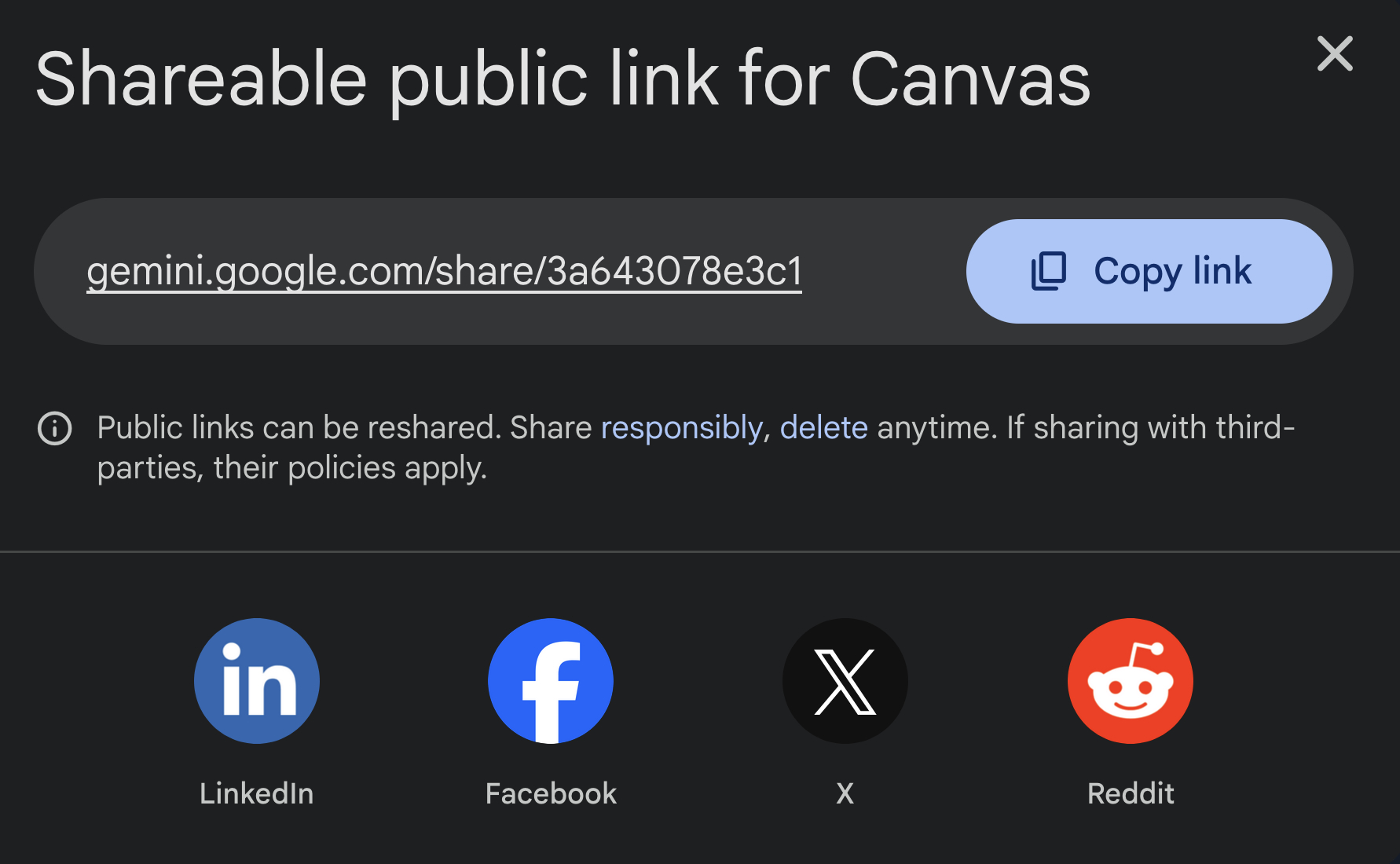
This provides a URL you can give directly to students.
- Embed on a Website: Ask Gemini to create the HTML code for you. Copy the code from the Code tab, save it in a text file, and place the source code on your website.
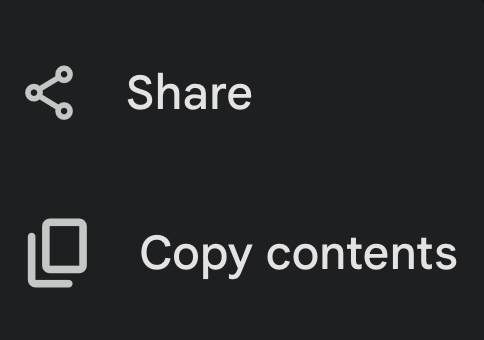
Many educators use Google Sites to embed these games, creating a central hub for students to access activities without needing to sign in. You can see a few sample games I made here:
- Past Tense Master

- Gladiator Arena (Embedded Clauses)
- Welding Training Hub
- The Hospital Interview
- Level Up your Medical Coding
Conclusion
Vibe coding is made easy with Gemini Canvas. This tool allows teachers to create customized interactive games without knowing how to code. The possibilities are endless: adventure scenarios, flashcard activities, sorting tasks, personalized interviews, and more.
If you are interested in exploring AI beyond Gemini Canvas, please refer to the Digital Learning Guidance, Chapter Eight. Enjoy making your app!
References:
- California Adult Education Digital Learning Guidance (2026)
- Karpathy, A., 2025 LLM Year in Review (2025)