

Building Community: Working Together in Education with SharePoint
by Chris Vela Che, OTAN Subject Matter Expert
As educators of multilingual adult learners, staying informed about the issues that shape our students’ daily lives is a shared responsibility to better serve and support them. Recent immigration policy changes have directly and indirectly affected many of our most vulnerable students in continuing education programs, making it clear that creating a safe and welcoming classroom environment — while essential — is no longer sufficient to ensure student retention and success.
What Can Educators Do?
Play an active role in supporting your students by sharing timely school- and community-based information and resources, as well as dedicating class time to explaining how these resources can be accessed and used. These efforts help build a strong and effective support network for students. These resources may include local free legal clinics, immigrant rights and safety information, mental health services, and other support programs. Ensuring that all students, regardless of English language proficiency, are well-informed also empowers them to make informed decisions and strengthens their ability to advocate for themselves and their families.
Information is Power
 Staying well informed and keeping up with the flow of information and resource updates — often delivered through emails — requires ongoing time, attention, and dedicated effort, particularly when educators are also responsible for sharing these resources with students in timely and meaningful ways. So, how can educators and administrators ensure that staying informed remains manageable and does not become an overly time-consuming responsibility? Equally important, where and how can all information be accessed quickly when it is needed most?
Microsoft SharePoint offers solutions. For those who are new to SharePoint, building, editing, and contributing to sites may require some initial time, practice, and patience. However, once you know and practice step-by-step, SharePoint becomes a user-friendly platform that is both easy to navigate and highly effective for organizing and sharing information in a centralized location.
A Time Saver
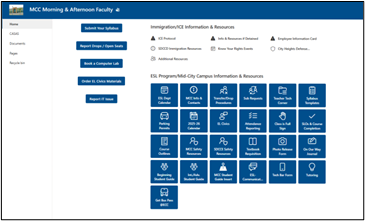 One of the greatest advantages of SharePoint is how easy it is for faculty to access links and resources needed to not only inform students but plan semester-long courses as well. At our college, ESL Assistant Program Chair Jeffrey Strack created a comprehensive SharePoint site that brings essential information together in one convenient location. The site includes links for submitting syllabi, reserving computer lab time, requesting substitutes, ordering EL Civics materials, reporting IT issues, accessing syllabus templates, reviewing immigration-related information, and more.
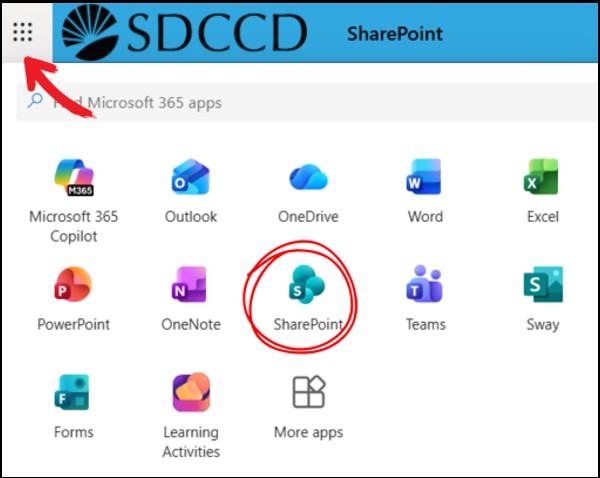 Once logged in through a district Outlook email account, faculty can quickly open the SharePoint app from the top-left navigation menu and navigate directly to the appropriate site. This centralized approach saves valuable time, streamlines administrative tasks, and simplifies processes — particularly for new instructors.
Getting Started with Microsoft SharePoint
Not all school districts with a Microsoft 365 subscription have enabled SharePoint access for faculty and administrators. In a typical adult school setting, the initial creation of a SharePoint site is usually managed by the district IT department (SharePoint administrators). Once the system is established, the day-to-day creation and management of team-specific sites are often delegated to designated “power users” or site owners, such as program coordinators or department heads. For details about your school’s SharePoint site access, contact your organization’s IT department.
SharePoint Sites & Document Libraries
A SharePoint site serves as a collaborative workspace—featuring elements such as a homepage, news, and calendars — designed for sharing and managing information. A document library, by contrast, is a specialized component within a site used specifically to store, organize, manage, and version files. Use sites to structure departments or projects, and use libraries to organize documents, apply metadata, and manage permissions.
The following steps provide an overview of how to create a site and document library, as well as how to upload files. For more detailed guidance, visit the Microsoft Support page, Get Started with SharePoint.
Create a site in SharePoint
- Select + Create site.
- Select Team Site or Communication Site.
- Select Use Template.
- Add a name and a description of your site.
- Select privacy settings and default language.
- Select Create site.
- Add site members and owners.
- Select Finish.


Add a document library in SharePoint
- Select New and Document library.
- Select Blank Library.
- Type a name and a description of the Document library.
- Select Create.

Upload files and folders to a library
SharePoint allows educators and administrators to easily upload files and documents by dragging them directly from your computer into the platform. You can also create custom columns to organize materials by format, purpose, topic, language, and other categories, making documents easier to sort, locate, and manage.
It Takes a Village
Through a collaborative effort, faculty and administrators at our college have been working together to upload immigration rights and safety resources to the shared SharePoint document library as shown in the screenshot below.
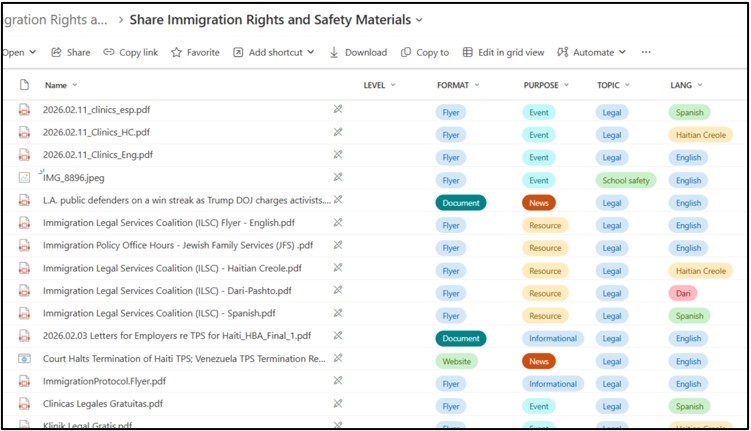
Educators can then easily access this centralized repository of resources and share them with students through email, text messaging, or a learning management system (LMS) such as Canvas.
Supporting students — and one another — truly takes a collective effort. Building a strong support network also requires time and intentional collaboration, and SharePoint helps make this possible by providing a shared space where faculty and administrators can contribute, organize, and access important information to later share with students.
References.
Microsoft Support - SharePoint Help & Learning, Create a site in SharePoint